
Sage to Business Central Migration: A Practical Guide for Growing Businesses
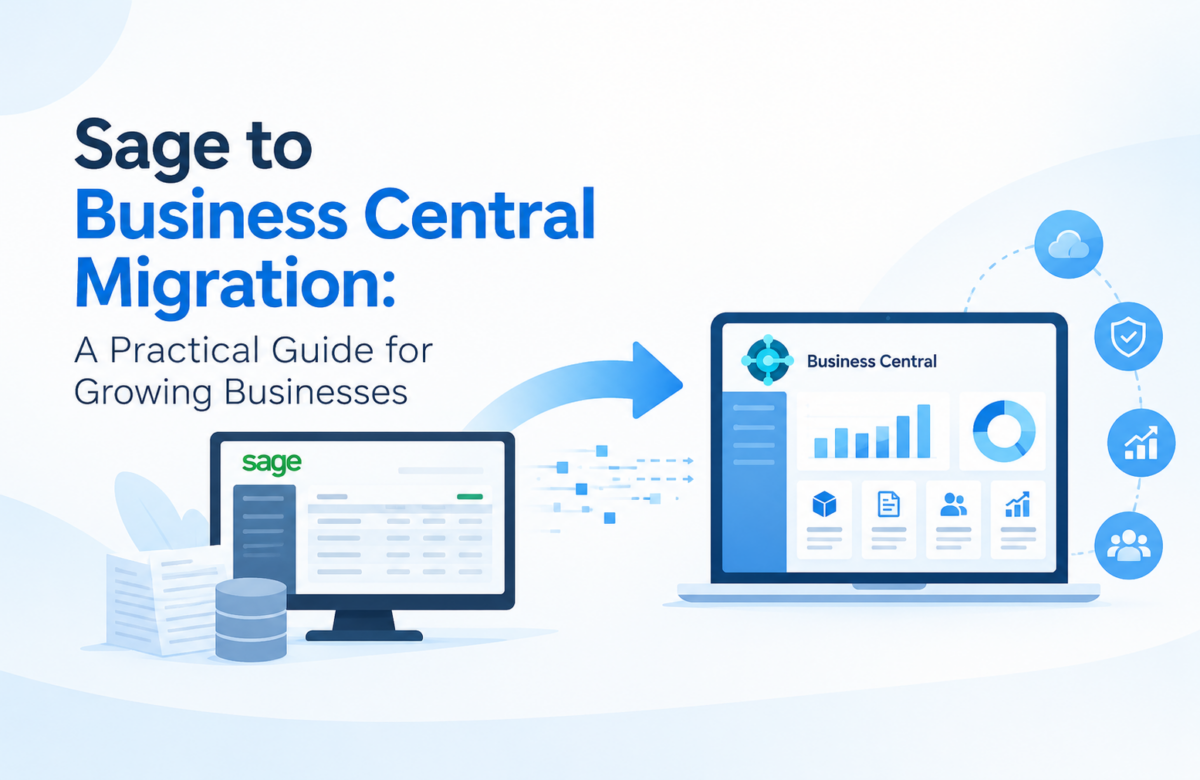
Sage does a good job for a lot of companies. It keeps the books clean, handles invoices, and runs payroll without much fuss. Then the business grows. You add a second entity, hire more people who need access, and start tracking inventory across locations. Soon a large share of your real work happens in Excel because the accounting package can’t keep up.
That is usually the moment finance leaders start looking at Microsoft Dynamics 365 Business Central. A well-planned Dynamics 365 Business Central Migration gives you finance, sales, purchasing, inventory, and reporting in one cloud system, without asking your team to learn a completely different toolset.
This guide covers what changes, what to plan for, and how the move works in practice.
Signs You Have Outgrown Sage
Nobody wakes up and decides Sage is finished. It happens through small frustrations that pile up. Here are the ones we hear most often:
- People share logins or wait for someone else to log out because of user limits.
- Consolidating multiple companies or currencies means a manual spreadsheet at every month-end.
- Inventory has become too complex for basic stock tracking.
- The standard reports don’t answer the questions leadership actually asks.
- Data can be corrupted or slowed down as transaction volumes grow, especially on desktop or file-based setups.
- Remote access is awkward, and the team depends on VPNs or remote desktops.
If three or more of these sound familiar, it’s worth at least running the comparison.
Sage vs. Business Central: What Actually Changes
The simplest way to put it: Sage (especially Sage 50) is accounting software, while Business Central is a full business management system. Here is how they compare on the points that matter day to day.
|
Area |
Sage 50 / similar | Business Central |
|
Scope |
Core accounting, basic inventory, payroll | Finance, sales, purchasing, inventory, projects, service, and more |
|
Deployment |
Desktop or server-based | Cloud-first, accessible anywhere |
|
Users and entities |
Limits as you grow |
Scales with users and companies |
|
Microsoft 365 |
Limited connection |
Works with Outlook, Excel, Teams |
|
Reporting |
Standard reports, lots of manual work |
Power BI dashboards and real-time data |
| Automation | Mostly manual entries | Power Automate workflows and Copilot features |
| Updates | Manual upgrades |
Microsoft delivers updates on a regular schedule |
The practical difference shows up in a normal week. Instead of exporting figures and reconciling them by hand, everyone works from the same live numbers. A question from your bank or your board can be answered in minutes instead of days.
Benefits of Moving from Sage to Business Central
One system instead of several. Finance, inventory, sales orders, purchasing, and project tracking all sit together. You stop stitching tools together and stop wondering which spreadsheet holds the right number.
Cloud access without the IT burden. There are no servers to patch and no overnight upgrade windows. Microsoft looks after security, availability, and updates.
Familiar tools for your team. Users can open data in Excel, get approvals in Outlook, and collaborate in Teams. That shortens training time and helps adoption.
Better reporting. Built-in Power BI connections let you build dashboards on live data, so month-end stops being a scramble.
Room to grow. Adding users, companies, currencies, or new business lines doesn’t force another system change a few years down the road.
Predictable costs. A subscription model replaces large upfront spending on hardware and maintenance. Always compare the full cost over several years, not just the license price.
How a Sage to Business Central Migration Works
Migration sounds heavier than it usually is. Sage data comes out in fairly accessible formats, and master records import business data from other finance systems like the chart of accounts, customers, vendors, and items can be exported to Excel or CSV. The real effort goes into planning and mapping, not moving files.
Step 1: Assess your current setup
List what you run in Sage today: modules, add-ons, custom reports, number of companies, and number of users. Decide how much history you actually need. Most businesses don’t need ten years of transactions in the new system. Open balances plus a sensible amount of history, kept in an archive for the rest, is common.
Step 2: Design your chart of accounts and dimensions
This is the step people underestimate. Sage nominal or account codes don’t have to be copied one-to-one. Business Central uses dimensions (department, project, region, and so on) to slice reporting without creating hundreds of accounts. A little time spent designing this now is what gives you the reporting you wanted when you decided to switch.
Step 3: Extract and clean your data
Export customers, vendors, items, open invoices, and balances. Then clean them. Duplicate customers, dormant vendors, and old inventory items are much easier to remove before migration than after. Skipping the cleanup only moves problems into the new system.
Step 4: Configure Business Central
Set up companies, posting groups, number series, payment terms, tax settings, users, and permissions. This is where the Dynamics 365 Business Central implementation takes shape, so involve the people who will use the system daily. Their input catches gaps early. Business Central’s configuration packages and Excel-based editing make loading master data faster and easier to check.
Step 5: Load data and validate
Import the cleaned data, then reconcile it. Trial balance, customer and vendor ledgers, inventory valuation, and open documents should all match your Sage figures on the cutover date. Run at least one full test load before the real one.
Step 6: Test in parallel
Run real transactions in both systems for a short period, ideally through a month-end close. This is where finance teams build trust in the new numbers.
Step 7: Train and go live
Keep training role-based and short. An accounts payable clerk doesn’t need the same session as a controller. Pick a cutover date away from year-end or heavy invoicing periods, and keep Sage available in read-only mode for reference.
Connecting Business Central to the Rest of Your Stack
Most companies don’t run on a single application. You might have an e-commerce store, a CRM, a warehouse system, a payroll tool, or a bank feed. Planning Dynamics 365 Business Central integration early avoids a lot of rework later. Decide which systems need to exchange data, in which direction, and how often. Business Central offers standard APIs and works with Power Automate and Azure services, so many connections don’t need heavy custom development. Just make sure someone owns each integration after go-live.
Common Challenges (and How to Handle Them)
Data quality. Years of inconsistent entries show up during mapping. Budget time for cleanup and get finance to approve the rules.
Scope creep. New system, new wish list. Keep phase one focused on what you need to run the business, and schedule improvements for phase two.
User adoption. People used to Sage will miss the way it worked. Involve them early, show them the time-saving parts, and name a few internal champions.
Downtime worries. Good cutover planning keeps disruption small. Timing the move around your calendar helps as much as any technical step.
Hidden customizations. Custom Sage reports and add-ons often do jobs nobody remembers. Document them during assessment so nothing important gets dropped.
Unrealistic budgets. License costs are only part of the total. Include data migration, configuration, training, and post-go-live support.
How Long Does It Take?
For a straightforward, single-company setup, the timeline is usually a matter of weeks. Multiple entities, heavy inventory, several integrations, or long transaction history will extend it. Your partner should give you a clear estimate after the assessment phase, not before.
Choosing the Right Migration Partner
A good partner spends more time on design conversations than on the export itself. Look for:
- Proven experience moving finance data from Sage or similar systems
- Microsoft Solutions Partner status
- A clear plan for data validation and parallel testing
- Post-go-live support, not just a project handover
- Willingness to explain trade-offs in plain language
How Vaden Consultancy Can Help
Vaden Consultancy is a Microsoft Solutions Partner working with businesses across India and the US. Our team handles Dynamics 365 CRM, Business Central (ERP), Power Platform, Azure cloud and infrastructure, and AI and security services. That range matters during a migration, because finance rarely moves alone. Reporting, automation, and cloud setup usually come along with it.
If you are still comparing options, our Dynamics 365 Business Central consulting services start with an assessment of your current Sage environment, so you know the scope, timeline, and budget before committing to anything. From there we plan the data mapping, build and test the new system, train your team, and stay available after go-live.
Ready to Plan Your Move?
Staying on a system you have outgrown costs more over time than most companies realize, in workarounds, delays, and decisions made on stale numbers. A structured migration to Business Central gives your team one reliable system to grow on.
To scope your move, write to us at connect@vadenconsultancy.com and we’ll help you map your current Sage setup before anyone talks pricing.
Frequently Asked Questions
Will I lose my Sage history?
No. Open balances, customers, vendors, items, and historical transactions can be brought across to the level of detail you and your auditors need. Anything older can be archived and kept accessible.
How long does a Sage to Business Central migration take?
A clean, single-company move often takes a few weeks. More entities, more inventory, and more integrations add time.
Is Business Central only for larger companies?
No. It is designed for small and mid-sized businesses, and many companies move to it directly from Sage 50.
Do we need to stop working during the switch?
Not for long. Parallel testing and a planned cutover keep the interruption short, and Sage can remain available for reference afterward.
Can we keep using Excel?
Yes. Business Central works directly with Excel, so teams can still edit and analyze data in a familiar tool, with far less manual copying.
What should we do first?
Document what you run in Sage today and what frustrates you about it. That list becomes the foundation for scoping the project.
Follow VADEN Consultancy on LinkedIn for more insights on Microsoft Dynamics 365, Business Central, Power Platform, Power BI, AI, Azure Cloud, CRM, ERP, automation, cybersecurity, and business technology.