
From Inbox Overload to Instant Action: How AI-Powered Email-to-Case Automation Is Changing Dynamics 365 Support
If you have ever run a support desk, you know the feeling. It is 9:07 a.m. The shared inbox already has forty unread emails. Half of them need to become a case before anyone can start on the actual problem.
Someone reads the email. They decide who it belongs to. They open Dynamics 365, create the case, fill in the fields, and assign it. Only then does the real troubleshooting begin. Multiply that by a hundred emails a day, and your team spends more time on data entry than on helping customers.
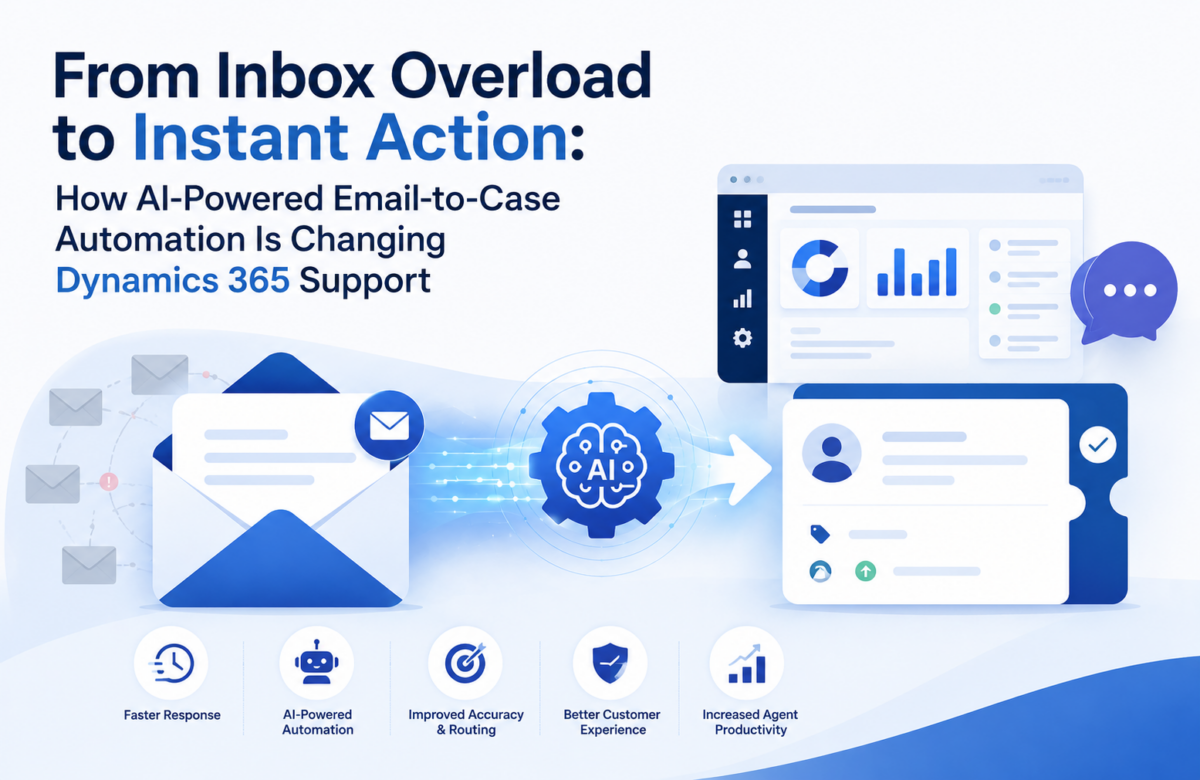
AI-powered Email to Case automation closes that gap. The system reads the email itself. It works out what the email is about, who it belongs to, and how urgent it is. Then it creates and assigns the case in Dynamics 365 automatically. What used to take minutes now happens in seconds, and it happens the same way every time.
Why Manual Case Creation Is Quietly Costing You
Reading an email and creating a case sounds like a small task. In practice, it adds up fast. A support agent who spends three or four minutes per email on triage loses hours every week. That time does not go toward solving customer problems.
Manual triage is also inconsistent. Two agents can read the same email and route it differently. One might flag it urgent; the other might miss it in a busy inbox.
The knock-on effects are what really hurt: delayed responses, cases that fall through the cracks, and a support history full of gaps. When something goes wrong for a client, the case record should tell the full story. A patchy record damages both customer trust and internal reporting.
How AI-Powered Email to Case Automation Actually Works
This kind of solution sits between your inbox and Dynamics 365. It runs quietly in the background every time a new email arrives. You do not need to rip anything out. Most teams add this layer on top of an existing Dynamics 365 CRM implementation, using the queues, rules, and case entities they already have configured.
Here is the flow, step by step:
- An incoming email lands in the monitored mailbox and triggers a Power Automate flow.
- An AI model reads the subject and body of the email. It classifies the topic, urgency, and any relevant keywords.
- The system checks the sender and content against known rules. This tells a genuine support request apart from internal chatter, spam, or a duplicate reply.
- If the email meets the criteria, the system creates a case in Dynamics 365 and assigns it to the right consultant or queue.
- Outlook updates with a category, so anyone glancing at the inbox can see the email has already been processed.
- If the AI detects a critical issue, such as a security incident or a system outage, it triggers an immediate escalation and sends an alert through Microsoft Teams.
None of this replaces your support team’s judgement. It simply removes the repetitive first step. Consultants can spend their time on the part of the job that needs a human: understanding the customer’s issue and solving it.
What Changes Once Automation Is in Place
It helps to picture the before and after side by side.
Before
- Every email is read and triaged manually, one at a time.
- Cases get missed or delayed when the inbox is busy.
- Documentation quality depends on whoever handled the email that day.
- Critical issues can sit unnoticed until someone happens to open that email.
After
- Cases are created and assigned automatically, within moments of the email arriving.
- Every genuine support email is captured, with noise and duplicates filtered out.
- Case records stay consistent, because the same rules apply to every email, every time.
- Critical or security-related emails get flagged and escalated immediately.
The result: a support desk that responds faster, documents better, and gives managers a clearer view of what is happening across client interactions.
Where This Kind of Automation Fits Best
This isn’t a niche fix for one type of business. We see it doing the heavy lifting across a range of support-driven environments:
- IT support desks that field a constant stream of tickets by email
- Customer service teams juggling product questions, complaints, and renewals in the same inbox
- Teams tracking incidents and complaints that need a clear audit trail
- Operations teams that need to know the moment a system-down or security alert lands, not an hour later
Built With Security and Traceability in Mind
A lot of this trustworthiness comes down to how well the pieces connect. This is where Dynamics 365 CRM integration with Outlook, Power Automate, and Microsoft Teams earns its keep. Every action, from classification to escalation, needs to hand off cleanly between systems without losing context.
Automation that touches customer emails needs to be trustworthy by design, not as an afterthought. A well-built Email to Case solution filters out internal and duplicate emails so they never clutter the case queue. It flags anything that looks like a security incident for immediate escalation. It logs every action inside Dynamics 365, so you get a full, auditable trail of what happened and when.
That last point matters more than people expect. When a client asks what happened with a ticket last month, a clean automatic log makes that conversation much easier than a patchwork of manual notes.
The Real Return on Investment
The business case is fairly straightforward once you have lived with the manual version. Response times improve, because cases no longer wait for someone to notice the email. Manual workload drops, freeing up consultant hours for higher-value work.
Case documentation becomes consistent and reliable. That pays off later during audits, escalations, or whenever someone needs to understand the history of an account. And because the heavy lifting happens automatically, the same setup scales as email volume grows, without needing a proportionally larger support team.
Getting the Setup Right
The mechanics behind this are well within reach of most Dynamics 365 environments: queues, mailbox configuration, and Automatic Record Creation and Update Rules, combined with an AI layer for classification and a Power Automate flow to tie it together.
What actually determines success is how thoughtfully your team configures it. Which rules decide priority? How do you filter duplicates and internal noise? How does escalation work for emails that genuinely cannot wait?
This is usually where it helps to bring in a Dynamics 365 CRM consultant who has configured these rules before. They know which edge cases tend to trip teams up, like reopening a closed case correctly instead of letting a follow-up email disappear into a dead ticket.
For teams that would rather not build this in-house, a focused Dynamics 365 CRM development service engagement can get the same result without a large-scale rebuild. The classification and routing logic simply layers onto what already exists. Getting these details right the first time saves a lot of rework later.
Final Thoughts
Email to Case automation seems small on a slide deck. On the ground, it feels different: faster responses, fewer missed tickets, and a support inbox that finally stops feeling like a second full-time job.
For teams already running on Dynamics 365, layering AI-driven classification and automatic case creation on top of what you already have is a natural next step, not a rebuild.
At Vaden Consultancy, we work with support and service teams to design and build exactly this kind of solution, tailored to how your team actually handles email and cases today. Still creating cases by hand? It’s worth a conversation about what this could look like for your workflows.
Follow VADEN Consultancy on LinkedIn for more insights on Microsoft Dynamics 365, Business Central, Power Platform, Power BI, AI, Azure Cloud, CRM, ERP, automation, cybersecurity, and business technology.