
How to Connect Your Dynamics 365 CRM Agent with External REST APIs Without the Usual Headaches
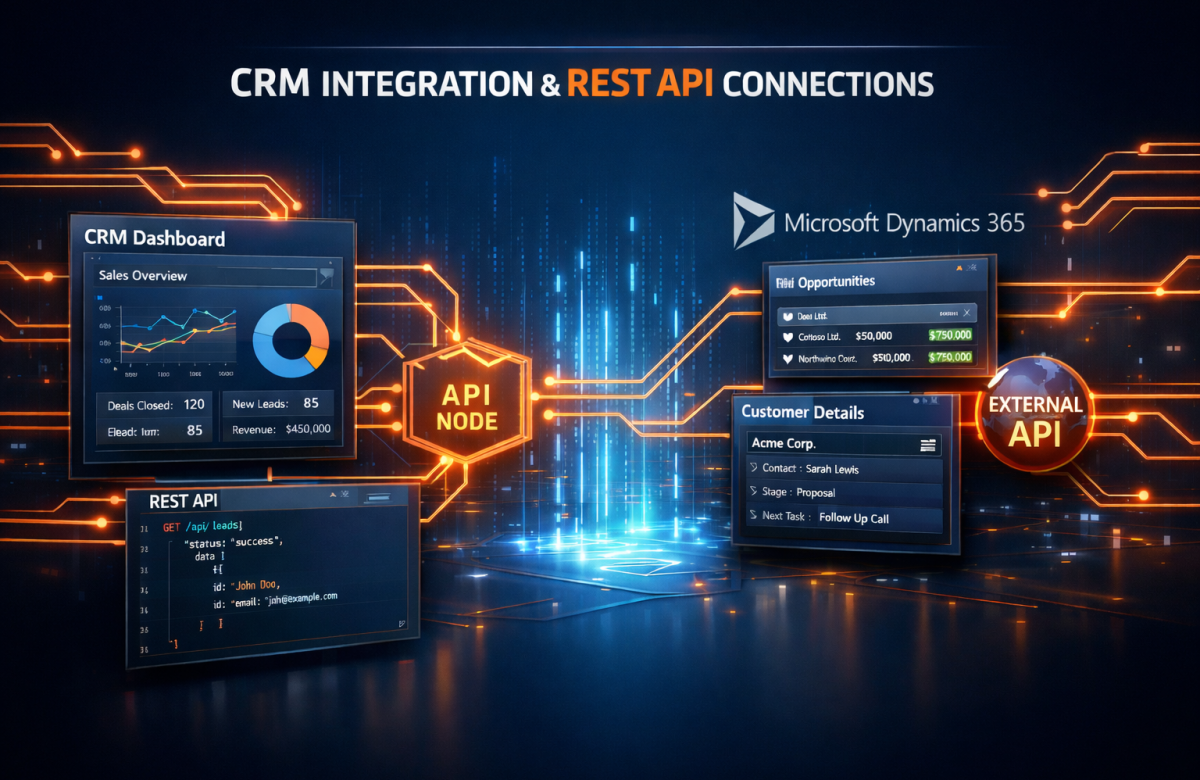
Your Dynamics 365 CRM is only as powerful as the data it can act on. When real-world business decisions depend on information that lives outside your Dataverse environment live exchange rates, shipping statuses, tax calculations, ERP records your CRM agent needs to reach beyond its own walls. That is exactly what REST API tools in Microsoft Copilot Studio make possible.
At Vaden Consultancy, we have spent over two decades helping businesses get the most from the Microsoft ecosystem. One question we hear often from clients is: “Our Copilot agent is great inside CRM but how do we pull in live data from other platforms?” This blog answers that question thoroughly, walking you through the concept, the architecture, and the actual implementation steps.
Why Your CRM Agent Needs to Talk to the Outside World
But here is the reality many organizations face: not all the data a sales rep or customer service agent needs is stored in Dataverse. Think about these everyday scenarios:
- Sales teams dealing in multiple currencies need live exchange rates when updating opportunity values or creating quotes.
- Field service agents need real-time stock levels from an ERP system before committing to delivery timelines.
- Finance teams want credit risk scores from external bureaus without leaving the CRM context.
- Customer support needs live shipment tracking pulled directly into case records during a live conversation.
Storing all of this inside Dataverse would mean constant sync pipelines, stale data, and a maintenance burden your team does not need. The smarter architecture is to let your CRM agent query these systems on demand — and REST API tools make that not only possible, but surprisingly straightforward.
Understanding the Architecture: Where REST Tools Fit In
Before jumping into configuration steps, it helps to understand conceptually what happens when a Copilot agent invokes a REST tool.
When a user asks your CRM Copilot something like “What is the EUR value of this £50,000 opportunity?”, the agent does not just search Dataverse. It recognises from context that an external service is needed, calls the REST tool you have defined, receives structured JSON back, reasons over the data, and then responds in plain conversational language — all within a single turn of dialogue.
There is no need for an intermediate Power Automate flow, no polling mechanism, and no data duplication. The agent is essentially acting as an intelligent API orchestrator on top of your CRM, pulling live context whenever the business logic demands it.
Key principle: REST tools complement Dataverse connectors they do not replace them. Use Dataverse for CRM entity operations. Use REST tools when the data or logic sits entirely outside Dynamics 365.
Step-by-Step: Setting Up REST API Tools in Copilot Studio
The following walkthrough uses a real-world scenario: enabling a Dynamics 365 Sales Copilot agent to retrieve live foreign exchange rates from an external financial API. The same approach applies to any REST endpoint you need to integrate.
Step 1: Build Your OpenAPI 3.0 Specification
Every REST tool in Copilot Studio is defined via an OpenAPI specification file. This is a YAML or JSON document that describes the endpoint URL, the available paths, the parameters your agent needs to pass, and the expected structure of the response. For a currency service, your spec would define two operations: one to retrieve current rates for a given base currency, and one to perform a specific conversion between two currencies for a given amount. Each path entry must document its input parameters and the JSON response schema clearly — this is how the agent knows when and how to invoke each operation.
Step 2: Add the Tool Inside Copilot Studio
Navigate to Tools > Add Tool > REST API within your Copilot Studio agent configuration. Upload the OpenAPI spec file you created. The studio will parse it and display the available endpoints for you to review and select.
Step 3: Configure Authentication Properly
Depending on the external API’s requirements, configure either an API Key header, Bearer token, or OAuth 2.0 flow. Do not skip this step even for internal services — authentication ensures the agent communicates securely with every external endpoint it reaches.
Step 4: Write Descriptive Tool Labels
This step matters more than it might appear. The descriptions you write for each endpoint are what the AI uses to decide when to invoke a given tool. A vague description means the agent may invoke the wrong operation or miss opportunities altogether. Be precise: describe the business purpose, not just the technical function.
Step 5: Publish, Connect, and Validate
Once configured, publish the tool and establish the connection within Copilot Studio. Then run live test conversations against your agent to confirm it correctly identifies when to call the external API and accurately interprets the responses it receives.
What This Looks Like in Practice: Two Live Scenarios
Once configured, the agent’s behaviour feels remarkably natural. Here is how the same setup plays out across two different conversations your sales team might have:
Scenario A — On-the-Spot Currency Conversion
A sales representative is on a call with a client in Germany and needs to know what their £75,000 opportunity looks like in euros today. Rather than switching to a conversion website mid-call, they simply ask the Copilot agent. The agent recognises this requires a live rate, calls the exchange rate endpoint, performs the calculation, and responds with the converted figure and the rate used — all within the CRM window, within seconds.
Scenario B — Currency Strength Analysis for Strategic Decisions
A finance manager wants to know whether it is better to close a deal in GBP or EUR this week given current market conditions. The agent retrieves both rates against the base currency, compares them, and provides a recommendation with context — without the manager needing to consult a separate financial tool or spreadsheet.
What makes this genuinely useful: The agent is not just fetching data and displaying it raw. It is reasoning over the API response and converting it into a business-ready answer in natural language. That is the distinction between basic API plumbing and an intelligent CRM assistant.
REST Tools vs. Dataverse Connectors vs. Power Automate: When to Use What
One of the questions we get most often is how REST tools compare to the other integration options already available in the Microsoft ecosystem. Here is an honest breakdown:
| Requirement | Dataverse Connector | REST API Tool | Power Automate |
| Read/write CRM entities (accounts, leads, cases) | ✓ Best choice | ✗ Not designed | ⚬ Possible |
| Fetch live external data mid-conversation | ✗ Internal only | ✓ Best choice | ⚬ Adds latency |
| Complex multi-step background workflows | ✗ Limited | ✗ Not suitable | ✓ Best choice |
| Real-time agent reasoning over external data | ✗ Internal only | ✓ Best choice | ⚬ Indirect |
| Minimal maintenance overhead | ✓ Very low | ✓ Low |
⚬ Moderate |
The honest answer is that these tools work best together. A mature Dynamics 365 Copilot implementation will likely use all three Dataverse for CRM operations, REST tools for live external data, and Power Automate for longer-running background processes that do not need to happen synchronously within a conversation.
Common Pitfalls to Avoid
Having implemented REST integrations for numerous Dynamics 365 clients, the same mistakes come up repeatedly. Knowing them in advance will save you time and frustration:
Poorly Written Tool Descriptions
If you describe your exchange rate endpoint as “gets currency data,” the agent will struggle to invoke it at the right moment. Write descriptions that reflect the business context: “Use this when the user needs to convert a monetary value between two currencies or compare current exchange rates.”
Incomplete OpenAPI Schemas
If your spec omits response field definitions, the agent receives the data but cannot reason over it properly. Take the time to document the full JSON response schema, especially the fields that carry business value.
Ignoring Authentication Edge Cases
An expired API key or token will cause the tool to fail unless you have added proper error handling logic in your agent’s conversation design. Always include fallback paths for authentication failures in your conversation flows.
Over-Relying on REST When Dataverse Would Do the Job
If the data you need is already inside your CRM, do not add an external API call unnecessarily. Every external dependency is a potential point of failure and added latency — keep your architecture as lean as possible.
Wrapping Up
The ability to connect your Dynamics 365 CRM agent with external REST APIs marks a genuine step change in what conversational CRM tooling can do for your business. You move from an assistant that knows what is inside your CRM to one that knows what is happening in the world — in real time, within the same conversation, without any additional user effort.
For organisations dealing with multi-currency pipelines, complex pricing models, external data dependencies, or tight integrations with platforms outside the Microsoft stack, this is one of the highest-leverage improvements you can make to your Dynamics 365 environment right now.
The configuration is manageable. The business impact is significant. And once your team experiences the difference between a static CRM assistant and one that actively reaches out to the world for answers, there is no going back.
Ready to Build Smarter CRM Agents?
Vaden Consultancy has been delivering Dynamics 365 CRM solutions. Whether you are starting from scratch or extending an existing implementation, we help you design, build, and deploy CRM agents that move the needle.
Follow VADEN Consultancy on LinkedIn for more insights on Microsoft Dynamics 365, Business Central, Power Platform, Power BI, AI, Azure Cloud, CRM, ERP, automation, cybersecurity, and business technology.